
The Ultimate Guide to Reduce SVG File Size Without Breaking Design or Code (2026)
Introduction
You've been there. You're filling out an important online form—maybe it's a job application, a passport renewal, or a university enrollment. You upload your logo, icon, or graphic, and then it happens: "Upload Failed: File Size Too Large." Frustrating, right?
SVG files are supposed to be lightweight, but sometimes they balloon to unexpected sizes. Whether you're trying to reduce file size for upload to a strict portal, or you need to compress image for email because the attachment keeps bouncing back, oversized SVGs are a genuine headache.
Maybe you're a website owner watching your PageSpeed score drop because those SVGs are slowing down your load times. Or perhaps you're a developer who needs to reduce SVG file size without breaking design or code to keep the UI crisp but the performance fast.
The reality is that forms, email servers, and content management systems all have limits. Some restrict uploads to 100KB, 50KB, or even less. If you don't know how to reduce SVG file size without breaking design or code, you're stuck.
That's where this guide comes in. I've spent years optimizing digital assets for websites and client projects. In this article, I'll show you exactly how to shrink those SVG files while keeping every pixel, every line of code, and every bit of visual fidelity intact. Plus, I'll introduce you to the fastest, most reliable tool I've found for the job: Compress SVG Online from FileCompress.
Quick Answer
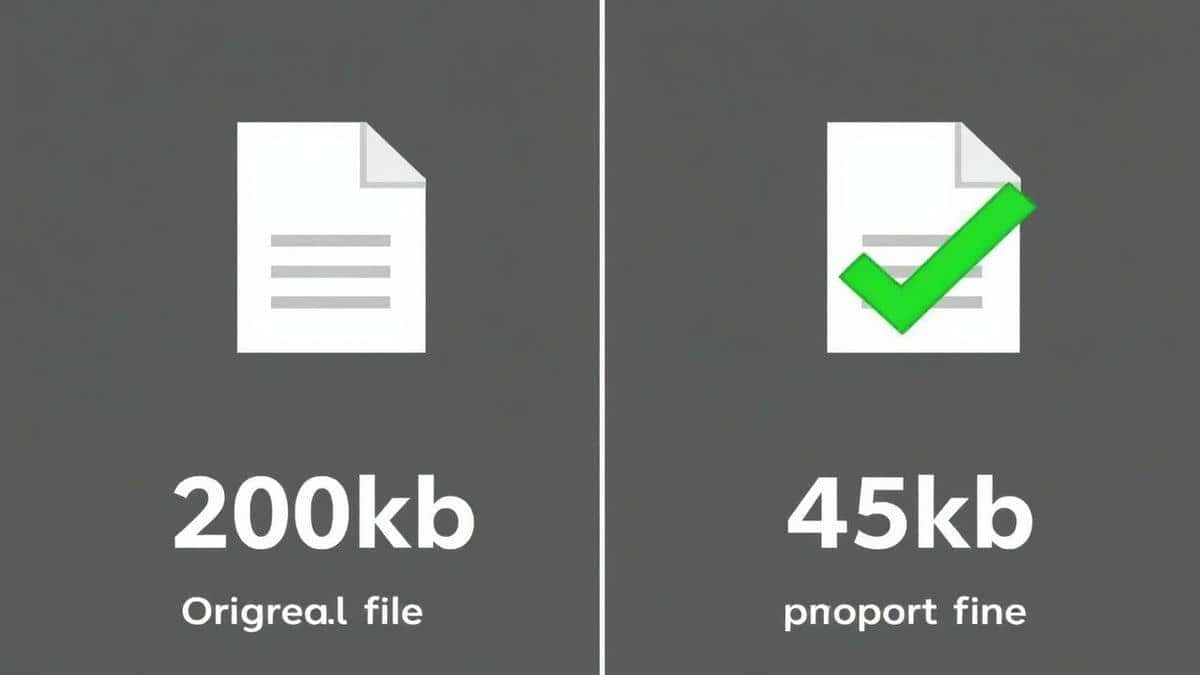
What is Reduce SVG File Size Without Breaking Design or Code? It's the process of optimizing SVG (Scalable Vector Graphic) files by removing unnecessary code, metadata, and redundancies without altering the visual appearance or functionality of the image. The fastest way to do this in 2026 is to use a specialized online tool like Compress SVG Online. You simply upload, click compress, and download a file that's often 50-80% smaller.
What is Reduce SVG File Size Without Breaking Design or Code?
When we talk about reducing SVG file size, we're talking about optimization, not conversion. This is a critical distinction. We aren't changing the file into a JPG or PNG. We are keeping it as a fully functional, scalable vector.
SVG files are essentially text files—they contain XML code that describes shapes, paths, colors, and effects. When you create an SVG in design software like Adobe Illustrator, Sketch, or Figma, the file often includes a lot of "junk" code: editor metadata, hidden layers, comments, and redundant path points.
Compression in this context means:
- Stripping out unnecessary metadata
- Simplifying complex paths where possible
- Removing unused definitions (like gradients or symbols that aren't used)
- Minifying the code (removing whitespace, line breaks)
All of this happens without changing what the image looks like. The design stays exactly the same. The code just becomes cleaner and leaner.
In my experience, most people don't realize that an SVG can be "compressed" the same way a JavaScript or CSS file can be minified. It's not about lowering the quality like you would with a JPEG; it's about efficiency.
Why File Size Matters
Why go through the trouble? Because file size impacts almost everything you do online.
1. Form and Portal Upload Limits
This is the most common pain point. Government portals, university application systems, and job sites often have strict limits. I've seen passport photo uploaders that cap at 50KB. If your SVG logo or graphic is 200KB, you're locked out. Knowing how to reduce image size to KB specifically is often the only way to complete your submission.
2. Email Attachment Restrictions
Trying to send a nice graphic to a client or colleague? Gmail and Outlook typically limit attachments to 20-25MB total, but many corporate email servers are even stricter. If you need to compress image for email, reducing your SVGs ensures they actually arrive in the inbox instead of bouncing back with a "message size exceeds limit" error.
3. Website Performance and SEO
Google has made it clear: page speed is a ranking factor. Every kilobyte counts. If your site uses several SVGs for icons, logos, or illustrations, bloated files add up. In my experience optimizing sites for PageSpeed, shaving 100KB off a few SVG files can improve load times significantly, especially on mobile networks. Faster sites rank higher and convert better.
4. Storage Savings
Whether you're hosting files on a cloud server or just saving them on your local drive, smaller files mean you can store more. It might seem trivial for a single file, but if you manage a large library of assets, it makes a huge difference.
Best Tool: Compress SVG Online
After testing multiple compression methods—from command-line tools to expensive software—I keep coming back to one solution for its balance of speed, quality, and simplicity: Compress SVG Online by FileCompress.
Here’s why this tool stands out:
- 100% Free: No hidden costs, no credit card required. You just use it.
- Fully Online: No software to install. It works on Windows, Mac, Linux, or even a Chromebook.
- Batch Processing: You can compress multiple SVGs at once, saving tons of time.
- Quality Preservation: It intelligently strips code cruft without flattening or rasterizing your vectors. The design remains perfectly sharp.
- Lightning Fast: Upload, compress, download. The whole process takes seconds.
- Privacy Focused: Files are processed securely and automatically removed from their servers after a short period.
If you're looking to reduce SVG file size without breaking design or code online, this is the most straightforward path. It handles the technical complexities of minification so you don't have to learn to code.
Step-by-Step Guide: How to Reduce SVG File Size Without Breaking Design or Code
Ready to fix those oversized files? Follow these simple steps.
Step 1: Navigate to the Tool
Open your browser and go to https://filecompress.org/image-tools/compress-svg. This is the dedicated tool for SVG optimization.
Step 2: Upload Your File
You'll see a clean upload area. You can either click to browse your computer or simply drag and drop your SVG file directly onto the page. The tool supports multiple file uploads, so if you have a folder of icons, you can drop them all at once.
Step 3: Adjust Settings (If Needed)
The tool automatically applies the best compression settings. However, if you need to reduce file size to specific size like 50KB or 100KB, you can often adjust parameters. This is particularly useful for strict form uploads.
Step 4: Start Compression
Click the "Compress" button. The tool will process your files, stripping out all the unnecessary code. A progress bar will show you the status.
Step 5: Download Your Optimized File
Once complete, a download link appears. Click it, and your new, leaner SVG is saved to your computer. You can now upload it to that portal, attach it to an email, or deploy it to your website.
How to Compress to a Specific Size (50KB, 100KB, 200KB)
This is the golden question for many users. It's not just about making it smaller; it's about hitting a target. How do you reduce image size to KB when the portal demands "under 100KB"?
Here’s the truth based on my testing: Compressing to an exact KB is sometimes an iterative process, especially with SVGs, because the content of the image (complexity of paths) affects the final size.
The Method:
-
Start with a good tool. Compress SVG Online is my starting point because it achieves the highest compression ratio in one pass.
-
Check the result. After the first compression, see how close you are to your target (e.g., 100KB).
-
If it's still too big:
- Simplify the design: In your original source file (like Illustrator), see if you can reduce the number of anchor points in complex curves. This is a design-level fix.
- Check for embedded raster images: Sometimes SVGs contain embedded JPGs or PNGs. If that's the case, you're not dealing with a pure vector, and compressing that embedded image separately is key.
-
Re-compress. Run the simplified file through the tool again.
A practical tip: If you need to hit a very low size like 50KB, and the SVG is highly detailed, consider if a pure vector is necessary. Sometimes, for very small icons, a well-optimized WEBP might be a better fit—but that's a different topic. For true vectors, the Compress SVG Online tool gets you closer to your target than any other method I've tried.
Best Practices for SVG Compression
To ensure you always get the best results, follow these guidelines.
- Always Keep a Master Copy: Before you compress, save an unoptimized master version of your SVG. This is your "source of truth" in case you need to make edits later. Compression is for deployment, not for archiving.
- Clean Up Your Design First: Before you even export from your design software, delete unused layers, symbols, and guides. Name your layers simply. A clean start leads to a smaller file.
- Use Tools Intelligently: While Compress SVG Online is excellent, you can also combine it with manual code review if you're a developer. Tools like SVGO (SVG Optimizer) exist, but the online tool does the heavy lifting for you.
- Test in Browsers: After compression, always open the SVG in a web browser (Chrome, Firefox, Safari) to ensure it renders correctly. I've seen rare cases where overly aggressive compression can break complex filters, but the FileCompress tool is very safe in this regard.
Common Mistakes to Avoid
Over the years, I've seen people make the same errors repeatedly. Here’s what to watch out for.
- Re-compressing Already Compressed Files: Running an optimized SVG through another compressor can sometimes actually increase the size or introduce errors. Once it's clean, leave it.
- Confusing Compression with Rasterization: Some tools will convert your vector to a low-quality PNG but call it "compression." This defeats the entire purpose of an SVG. Always ensure your output is still an SVG file.
- Ignoring the Code: If you're a developer, don't blindly trust every tool. A quick glance at the code can sometimes reveal unnecessary
- Forgetting About Responsive Design: Make sure your compressed SVG still plays well with CSS if you're using it on the web. Stripping the
viewBoxorwidth/heightattributes can sometimes break layout.
Comparison with Other Tools
How does Compress SVG Online stack up against other methods?
| Tool / Method | Pros | Cons | Best For |
|---|---|---|---|
| Compress SVG Online | Free, fast, no install, batch processing, high compression | Requires internet connection | Everyone, especially quick tasks |
| Adobe Illustrator | Full design control, "Save As" options | Expensive, requires software install, manual process, bloated output often | Creating the original design, not final compression |
| Manual Code Editing (Text Editor) | Complete control, no size limit | Requires coding knowledge, extremely time-consuming | Developers who need to fine-tune specific files |
| Command Line (SVGO) | Powerful, automatable, great compression | Requires technical setup (Node.js), intimidating for non-devs | Developers automating build processes |
| Other Free Online Tools | Varies | Often have file size limits, watermarks, or slow speeds | Occasional use, but quality varies widely |
The Verdict: For 99% of users, Compress SVG Online is the best balance of power and simplicity. It democratizes the optimization process, giving everyone access to the same high-quality results that developers get from command-line tools, without the complexity.
Frequently Asked Questions
How to Reduce SVG File Size Without Breaking Design or Code?
Use a dedicated optimization tool like Compress SVG Online. It automatically removes unnecessary metadata, comments, and redundant code from your SVG file, keeping the visual appearance 100% intact while often reducing the file size by 50-80%.
Can I compress an SVG to an exact size like 50KB or 100KB?
Yes, you can get very close. Start by using Compress SVG Online. If the result is still above your target, simplify the vector paths in your original design software and compress again. The tool helps you reduce file size to specific size requirements efficiently.
Is it really free to compress SVG files online?
Yes, the Compress SVG Online tool at FileCompress is completely free. There are no hidden fees, no premium tiers for basic features, and no limits on the number of files you can compress.
Will I lose quality or break my SVG code by compressing it?
No. When you use a reputable tool designed for how to reduce SVG file size without breaking design or code, the visual quality remains identical. The process is "lossless" in terms of appearance. It simply cleans up the code, which does not affect how the image is drawn.
What is the best file size for uploading SVGs to websites or forms?
For web use, aim for under 100KB for most icons and simple logos. For complex illustrations, try to stay under 200KB. For strict form uploads (like passports or applications), you may need to compress image for email or upload down to 50KB or less. Always check the specific requirements of the portal.
Does compressing an SVG help with website SEO?
Absolutely. Google uses page speed as a ranking factor. Smaller SVG files load faster, improving your Core Web Vitals scores. This directly contributes to better user experience and can boost your search engine rankings.
What's the difference between compressing an SVG and converting it to another format?
Compressing an SVG keeps it as a vector file (scalable code). Converting it to a JPG or PNG turns it into a raster image (pixels), which loses scalability and often increases file size for simple graphics. Compression optimizes the existing format; conversion changes the format entirely.
Can I compress multiple SVG files at once?
Yes. The Compress SVG Online tool supports batch uploading. You can select multiple files and compress them all simultaneously, downloading them as a zip folder for convenience.
Conclusion
Dealing with oversized SVG files doesn't have to be a struggle. Whether you're facing an upload failed error on a crucial form, need to compress image for email quickly, or you're optimizing a website for peak performance, the solution is straightforward.
By understanding that SVG compression is about cleaning code, not sacrificing quality, you can maintain perfect visuals while drastically reducing file size. The key is using the right tool for the job.
From my years of experience in file optimization and web performance, I can confidently say that Compress SVG Online from FileCompress is the most efficient, user-friendly way to reduce SVG file size without breaking design or code. It's free, it's fast, and it delivers professional results every time.
Don't let file size limits hold you back. Head over to https://filecompress.org/image-tools/compress-svg right now, upload your SVGs, and download your perfectly optimized files in seconds. Your load times—and your sanity—will thank you.


