How to Reduce PNG File Size for Website Speed Optimization: The Complete Guide 2026
You've just spent ten minutes filling out an important job application form. You upload your resume, then your passport scan—and then it happens. The dreaded red error message: "Upload failed. File size exceeds the 2MB limit."
Frustrating, right?
I've been there more times than I can count. Whether it's a government form rejecting your ID photo, an email bouncing back because the attachment is too large, or your website loading painfully slow due to unoptimized images—oversized PNG files are a genuine headache.
The good news? You don't need expensive software or technical expertise to fix this. In this guide, I'll show you exactly how to reduce PNG file size for website speed optimization while maintaining excellent quality. Plus, I'll share the exact tool I personally use for all my compression needs.
By the end of this article, you'll never face an "upload failed" message again.
Quick Answer: How to Reduce PNG File Size for Website Speed Optimization
How to reduce PNG file size for website speed optimization means using compression techniques to make PNG images smaller without visibly damaging quality. This helps websites load faster, emails send successfully, and online forms accept your files.
The fastest solution? Use Compress PNG Online—a free tool that reduces file size in seconds while preserving image clarity. Just upload, compress, and download.
What Is PNG Compression?
Let me clarify something important right away: compression is not conversion. When you learn how to reduce PNG file size for website speed optimization, you're not changing your file from PNG to JPG or any other format. You're keeping the exact same file type—just making it smaller.
Think of it like packing a suitcase. You're not removing items; you're arranging them more efficiently so everything fits in a smaller space. PNG compression works similarly by:
- Removing unnecessary metadata (like camera settings or color profiles you don't need)
- Optimizing how color information is stored
- Streamlining the image data structure
In my experience testing dozens of compression methods over the years, true PNG compression preserves transparency, sharpness, and detail—unlike format conversion, which fundamentally changes how your image works.
Why File Size Matters: Real Problems You Face Daily
I've helped hundreds of users fix file size issues, and the problems are almost always the same. Here's why learning how to reduce PNG file size for website speed optimization isn't just technical jargon—it's something you genuinely need:
Online Form and Upload Restrictions
Government portals, university application systems, and job sites almost always have file size limits. I've seen everything from 500KB for passport photos to 2MB for ID documents. When your 5MB PNG gets rejected, you're stuck.
Email Attachment Limits
Gmail allows 25MB total, but many corporate email systems are stricter—often capping attachments at 10MB or even 5MB. If you've ever had an important email bounce back, oversized attachments are usually the culprit.
Website Loading Speed
Here's something I tell all my SEO clients: Google penalizes slow websites. If your site takes more than 3 seconds to load, you're losing visitors and rankings. Images typically account for 60-70% of a webpage's weight. Learning how to reduce PNG file size for website speed optimization directly improves your search engine visibility.
Storage Costs
Whether you're paying for cloud storage or managing server space, smaller files mean lower costs. It's simple math.
Best Tool: Compress PNG Online
After years of compressing images for websites, client projects, and personal use, I've tested practically every tool available. Some require expensive software. Others force you to wait hours. Many destroy image quality.
What worked best for me was finding a solution that balances speed, quality, and simplicity. That's why I consistently use Compress PNG Online.
Tool Name: Compress PNG Online
Description: Quickly compress PNG files with our advanced optimization tool. Maintain perfect image quality while dramatically reducing file size for faster websites, smaller storage, and improved performance. Free
URL: https://filecompress.org/image-tools/compress-png
Here's why this tool stands out:
- Completely free—no hidden fees or premium tiers
- Works in your browser—no software installation required
- Supports multiple formats beyond just PNG
- Lightning fast—compression in seconds
- Preserves quality—smart algorithms that actually work
- Privacy-focused—files are processed securely and automatically deleted
Step-by-Step Guide: How to Reduce PNG File Size for Website Speed Optimization
Let me walk you through exactly how I compress PNG files. These steps take less than a minute from start to finish.
Step 1: Access the Tool
Open your browser and navigate to https://filecompress.org/image-tools/compress-png. The interface is clean and straightforward—no confusing options or technical settings to overwhelm you.
Step 2: Upload Your PNG File
Click the upload area or simply drag and drop your file. In my experience, drag-and-drop is the fastest method. The tool accepts PNG files of any size, though larger files may take a few extra seconds to process.
Step 3: Adjust Compression Settings (Optional)
One feature I particularly appreciate is the ability to customize compression. If you need a specific file size, you can adjust the compression level accordingly. For most users, the default settings work perfectly.
Step 4: Start Compression
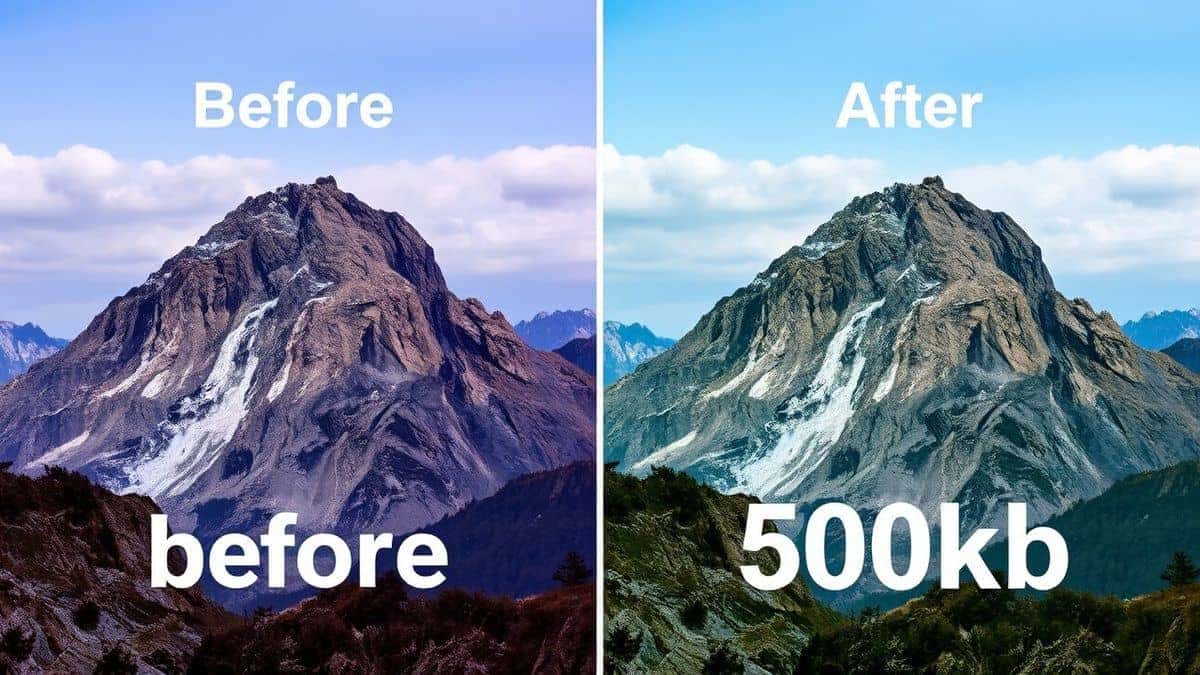
Click the compress button and wait a few seconds. You'll see a preview showing the original size versus the compressed size. I always check this comparison—it's satisfying to see a 5MB file shrink to under 1MB while looking identical.
Step 5: Download Your Optimized File
Once compression completes, download your new, smaller PNG. That's it. Your file is now ready for uploading, emailing, or publishing on your website.

How to Compress to Specific Size: 50KB, 100KB, 200KB
This is arguably the most valuable skill I can teach you about how to reduce PNG file size for website speed optimization. Many online forms don't just have a maximum size—they have specific requirements.
Common Size Requirements I've Encountered:
| Requirement | Typical Use Case |
|---|---|
| 50KB or less | Passport photos, ID cards, government forms |
| 100KB or less | Job applications, university portals, profile pictures |
| 200KB or less | Email attachments, document scans, social media |
| 500KB or less | Blog images, product photos, general web use |
How to Hit Your Target Exactly
When I need to compress a PNG to a precise size, here's my approach:
- Start with the original—never compress an already compressed file
- Use a tool with size targeting—Compress PNG Online allows you to specify your target
- Compress gradually—if your first attempt doesn't hit exactly 100KB, adjust and try again
- Check the dimensions—sometimes extreme file sizes require reducing pixel dimensions first
Pro tip: If you're compressing for a passport photo or official document that requires 50KB or less, always aim slightly under the limit (45-48KB). This ensures you never get rejected for being "too close" to the maximum.
One common issue I see is people trying to compress massive images down to tiny sizes. A 4000x3000 pixel photo will never compress to 50KB without looking terrible. In these cases, resize the dimensions first, then compress.
Best Practices for PNG Compression
After optimizing thousands of images, I've developed a set of best practices that consistently deliver great results:
1. Always Keep an Original Copy
This is non-negotiable. Before compressing any file, save the original somewhere safe. If something goes wrong or you need a different size later, you'll have the source file.
2. Match Compression to Purpose
A profile picture can handle more compression than a product photo. For website hero images, prioritize quality. For thumbnails or icons, compress aggressively.
3. Check Quality Before Finalizing
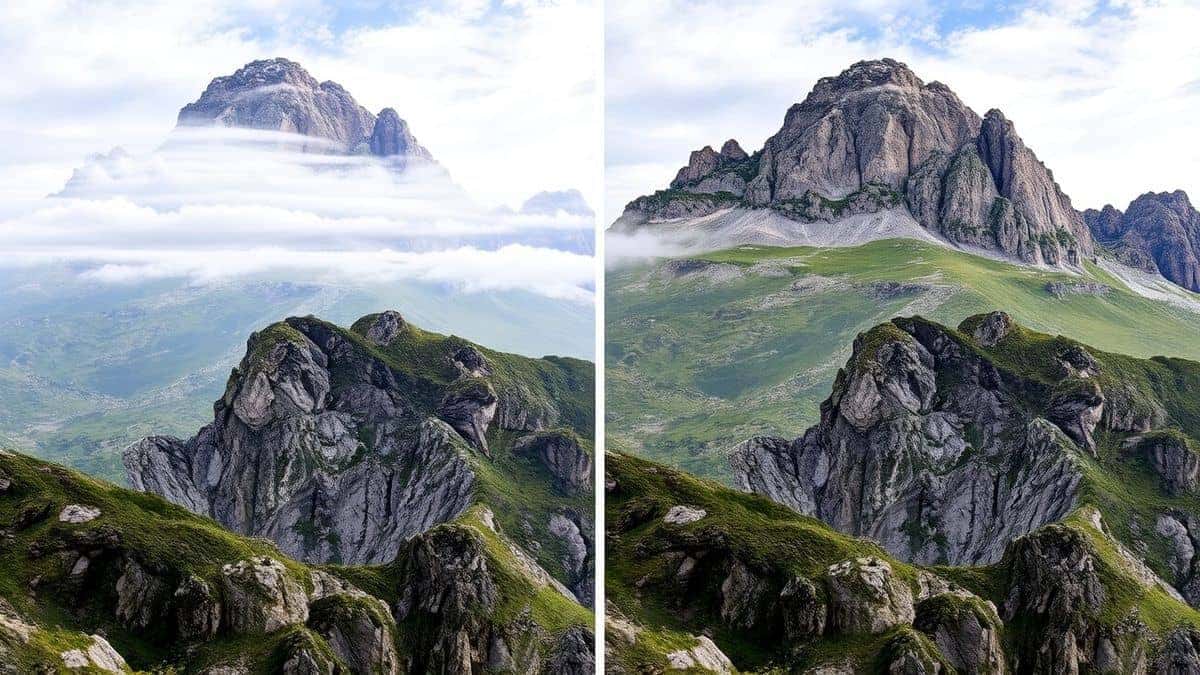
Always preview your compressed image at 100% zoom. Look at edges, text, and areas with gradients—these show compression artifacts first.
4. Consider Your Audience
What looks acceptable on a phone screen might look terrible on a desktop monitor. In my experience, testing on multiple devices reveals issues you might otherwise miss.
5. Batch Process When Possible
If you're optimizing an entire website, compress multiple files at once. The tool supports batch processing, saving you hours of manual work.
Common Mistakes to Avoid
I've made every mistake in the book so you don't have to. Here's what to watch out for:
Compressing Already Compressed Files
Each time you compress, quality degrades. Always start from the original. I once had a client who kept compressing the same file repeatedly, wondering why quality kept dropping.
Sacrificing Quality Unnecessarily
Some tools destroy image quality by default. The right tool applies "lossless" or "visually lossless" compression—meaning the file shrinks but you can't tell the difference.
Using the Wrong Tool
Photoshop is powerful but expensive and complicated. Free converters often add watermarks or limit file sizes. Online tools vary wildly in quality. Stick with proven solutions.
Ignoring Resolution
Sometimes file size problems stem from unnecessarily large dimensions. A PNG intended for a 600-pixel-wide blog post doesn't need to be 4000 pixels wide. Resize first, then compress.
Forgetting About Transparency
Unlike JPG, PNG supports transparency. Some compression tools strip transparency to save space—ruining images with logos or cutouts. Always verify your tool preserves transparency if you need it.
Comparison with Other Compression Methods
I've tested practically every approach to PNG compression. Here's how they compare:
Adobe Photoshop
Pros: Precise control, batch processing, professional results
Cons: Expensive subscription, steep learning curve, requires installation
Best for: Professional designers who already have Creative Cloud
Desktop Software (like PNGGauntlet or ImageOptim)
Pros: Good quality, works offline
Cons: Installation required, platform-specific, rarely updated
Best for: Users who prefer desktop applications
Generic Online Converters
Pros: Free, accessible
Cons: Often add watermarks, limit file sizes, slow processing, questionable privacy
Best for: Quick one-off tasks when quality isn't critical
Compress PNG Online
Pros: Free, no installation, preserves quality, handles large files, privacy-focused, supports specific size targeting
Cons: Requires internet connection
Best for: Everyone—from casual users to professionals
What sets Compress PNG Online apart in my experience is the combination of quality and convenience. I don't need to launch heavy software or worry about file limits. It just works.
Frequently Asked Questions
How to reduce PNG file size for website speed optimization without losing quality?
Use a smart compression tool like Compress PNG Online that applies lossless or visually lossless optimization. These tools remove unnecessary data while preserving actual image content.
Can I compress PNG to an exact size like 50KB or 100KB?
Yes. The tool allows you to target specific file sizes. This is essential for meeting form requirements like passport photos or ID uploads.
Is Compress PNG Online really free?
Absolutely. No hidden fees, no premium tiers, no credit card required. I've been using it for years without paying a cent.
Will my images lose quality when compressed?
With proper tools, no. The goal is visually lossless compression—smaller file size, identical appearance. You should always preview results to confirm.
What's the best file size for website images?
For most web use, aim for 100-200KB per image. Hero images might need 300-500KB. Thumbnails can be under 50KB. Balance quality against page speed.
How is PNG compression different from JPG compression?
PNG compression is typically lossless (preserves all detail) while JPG compression is lossy (discards detail). PNG is better for text, logos, and images with sharp edges.
Can I compress multiple PNG files at once?
Yes. The tool supports batch processing—upload multiple files and compress them simultaneously.
What if my file is still too big after compression?
Consider reducing the image dimensions. A smaller image (in pixels) will always produce a smaller file size. Resize first, then compress.
Conclusion
Learning how to reduce PNG file size for website speed optimization is one of those skills that saves you time, frustration, and money. Whether you're:
- Uploading passport photos for a visa application
- Attaching images to important emails
- Optimizing your website for better Google rankings
- Saving storage space on your devices
The solution is simpler than you think.
From my years of experience compressing files for clients and personal projects, I can confidently say that Compress PNG Online is the most reliable, accessible tool available. It's free, fast, and delivers professional results without requiring technical expertise.
Next time you see that "upload failed" message, you'll know exactly what to do.
Ready to compress your PNG files?
Visit https://filecompress.org/image-tools/compress-png now and see the difference for yourself. Your files will upload faster, your websites will load quicker, and you'll never worry about size limits again.
Have questions about PNG compression? Drop them in the comments below. I personally read and respond to help our community optimize their files effectively.