
How to Reduce JPEG File Size to 2MB Easily in 2026: The Complete Guide
Introduction
You've been there. You're filling out an important online form—maybe a passport application, a job submission portal, or a college admission document—and you hit upload failed. The dreaded message appears: "File size too large. Maximum size: 2MB."
Frustrating, right?
Maybe you're trying to email a batch of vacation photos, but your attachment bounces back because it exceeds the 25MB limit. Or perhaps you're running a website, and those high-resolution JPEGs are slowing your pages to a crawl, hurting both user experience and your Google rankings.
The good news? You don't need to be a tech wizard or buy expensive software to fix this. You just need to know how to reduce JPEG file size to 2MB easily—and I'm going to show you exactly how.
In this guide, I'll walk you through everything I've learned from years of optimizing images for websites, client projects, and personal use. We'll cover why file size matters, the best tools to use, and a step-by-step method to get your JPEGs down to that perfect 2MB sweet spot without destroying image quality.
Let's dive in.
Quick Answer: How to Reduce JPEG File Size to 2MB Easily
Reducing a JPEG to 2MB means compressing the image data so the file occupies less digital space while maintaining acceptable visual quality. The fastest method? Use a dedicated online compression tool like Compress Jpeg To 2mb from FileCompress. Just upload your image, let the tool process it, and download your optimized file—it usually takes less than 30 seconds.
What Does "Reduce JPEG File Size to 2MB Easily" Actually Mean?
Let's clear something up right away: compression is not the same as resizing or format conversion.
When we talk about reducing file size, we're not changing the dimensions of your image (though you can, if needed). We're not converting it to a different format like PNG or WebP. Instead, we're using mathematical algorithms to remove redundant or less-visible data from the JPEG file.
Think of it like packing a suitcase. A high-resolution JPEG is like throwing everything in loosely—it takes up maximum space. Compression is like carefully folding and vacuum-sealing your clothes. You fit the same essential items into a much smaller space, and when you "unpack" (view the image), everything still looks largely the same.
In my experience testing dozens of compression methods, the key is finding that sweet spot where file size drops dramatically but the human eye can't detect quality loss. For most purposes, 2MB is an excellent target—it's small enough to satisfy upload limits but large enough to retain good detail.
Why File Size Matters More Than You Think
You might wonder, "Why bother reducing JPEG file size if storage is cheap?" Here's the reality check from someone who's dealt with hundreds of upload failures and slow-loading websites:
Form and Portal Upload Limits
Government agencies, universities, and employers often set strict file size caps—frequently 2MB or less. I've seen talented professionals miss application deadlines because their passport photos or portfolio samples were too large to upload. These systems aren't designed for huge files, and they won't budge on limits.
Email Attachment Restrictions
Gmail caps attachments at 25MB total, but many corporate email systems are far stricter—sometimes as low as 5MB or 10MB per message. If you're sending multiple images, hitting 2MB per image ensures you can actually deliver what you promised.
Website Performance and SEO
This is where my SEO background kicks in. Google's PageSpeed Insights explicitly flags large images as a performance issue. Every kilobyte counts when you're competing for those top search positions. Faster sites rank better, period. Compressing images to 2MB or less can shave seconds off your load time, reduce bounce rates, and signal to Google that your site delivers a优质 user experience.
Storage Costs at Scale
If you're managing a website with thousands of product photos, reducing each image from 5MB to 2MB saves 3GB of storage per thousand images. That adds up to real money on cloud hosting bills.
The Best Tool: Compress Jpeg To 2mb
After testing countless compression tools—some great, some terrible—I keep coming back to one solution when I need reliable, precise results.
Compress Jpeg To 2mb (https://filecompress.org/image-tools/compress-jpeg-to-2mb) is my go-to recommendation for several reasons:
- It's completely free – No subscriptions, no hidden paywalls
- Works entirely online – Nothing to install, works on any device
- No account needed – Just upload, compress, download
- Supports multiple formats – Beyond JPEG, it handles PNG, WebP, and more
- Lightning fast – Most files process in seconds
- Preserves quality intelligently – Uses smart algorithms to maintain visual fidelity
- Secure processing – Files are automatically deleted after compression
I've used this tool for client websites, personal projects, and even helping friends submit visa applications. It consistently delivers on the promise of getting files to that 2MB target without the headache.

Step-by-Step Guide to Reduce JPEG File Size to 2MB
Ready to fix those oversized files? Here's exactly how I do it:
Step 1: Navigate to the Tool
Open your browser and go to https://filecompress.org/image-tools/compress-jpeg-to-2mb
The interface is clean and straightforward—no confusing options or technical jargon.
Step 2: Upload Your JPEG
Click the upload area or simply drag and drop your file. The tool accepts files up to 50MB, so even large camera photos work.
Step 3: Set Your Target (Optional)
While the tool is optimized for 2MB output, you can adjust settings if you need a different size. This flexibility is perfect when forms specify "under 1MB" or "maximum 500KB."
Step 4: Start Compression
Hit the compress button and wait a few seconds. You'll see real-time progress, and the tool will display the original versus compressed file size.
Step 5: Download Your Optimized File
Preview the compressed image to ensure quality meets your standards, then download. That's it—you're done.
How to Compress to Specific Sizes: Beyond 2MB
One question I hear constantly: "What if I need exactly 100KB, or 500KB, or 1.5MB?"
This is where understanding your tools makes all the difference. Compress Jpeg To 2mb isn't a one-trick pony—it's designed for precise control.
Why Exact Sizes Matter
- Passport photo systems often require images between 50KB and 200KB
- Job application portals frequently specify "under 500KB"
- E-commerce platforms may have strict 100KB limits for product thumbnails
- Email signatures work best with images under 50KB
The Approach That Works
From my experience optimizing thousands of images, here's the method:
- Start with the highest quality setting and gradually reduce
- Check the output size after each adjustment
- Stop when you hit your target—don't compress further
- Test visually to ensure critical details remain sharp
For documents and ID photos, I never sacrifice facial clarity. For website backgrounds or decorative images, I can push compression further because perfect detail matters less.
Best Practices for JPEG Compression
After years of trial and error, here are my non-negotiable rules for compressing images:
Always Keep a Master Copy
Never compress your only version. Save the original somewhere safe, then work on a copy. Compression is generally reversible in quality, so you want that original to fall back on.
Match Compression to Use Case
- Web use: 2MB is generous—aim for 100-500KB for most pages
- Email attachments: 1-2MB per image keeps total emails under limits
- Archiving: 2-5MB offers good quality without wasting space
- Printing: Don't compress heavily—print requires maximum detail
Consider Resolution First
Sometimes large file size comes from massive dimensions. A 4000x3000 pixel image from a modern smartphone is overkill for most online uses. Reducing dimensions to 2000x1500 can cut file size by 75% before compression even starts.
Use the Right Tool for the Job
Online compressors like FileCompress are perfect for quick tasks. For batch processing hundreds of images, dedicated software might be better. But for 95% of users, the online approach wins on convenience.
Common Mistakes to Avoid
I've made these mistakes myself, and I've seen countless others fall into these traps:
Mistake 1: Repeated Compression
Compressing an already-compressed JPEG is like photocopying a photocopy—quality degrades noticeably. Always work from your original.
Mistake 2: Aggressive Settings
Pushing compression too far creates "artifacts"—those blocky, distorted areas that scream "bad edit." If you see weird patterns around text or edges, you've gone too far.
Mistake 3: Wrong Tool Selection
Some "free" compressors add watermarks, limit file sizes unless you pay, or worst of all, store your uploaded images permanently. Stick with reputable tools that value your privacy.
Mistake 4: Ignoring the Preview
Always preview your compressed image at 100% zoom. What looks fine in a tiny thumbnail might be unacceptable at full view.
Mistake 5: Forgetting File Naming
After compression, rename your file clearly. "IMG\_4921-compressed.jpg" beats "IMG\_4921.jpg" when you're searching later.
Comparison with Other Compression Methods
How does online compression stack up against alternatives? I've tested them all:
Adobe Photoshop
Pros: Granular control, batch processing, professional results
Cons: Expensive subscription, steep learning curve, requires installation
Verdict: Overkill for most users who just need to email photos or upload forms
Native Mac/Windows Tools
Pros: Built-in, no cost, always available
Cons: Limited options, poor compression ratios, no size targeting
Verdict: Fine for quick resize, terrible for precise file size reduction
Other Online Tools
Pros: Convenient, often free
Cons: Variable quality, some have upload limits, privacy concerns
Verdict: Good options exist, but Compress Jpeg To 2mb stands out for reliability and precise targeting
Mobile Apps
Pros: Great for phone users, often include editing features
Cons: App installs required, permissions concerns, sometimes paid
Verdict: Useful for on-the-go, but desktop/tablet web tools work fine on mobile browsers too
What works best for me? I keep Compress Jpeg To 2mb bookmarked on all my devices. It's fast, it's free, and it just works—no installation, no accounts, no nonsense.
FAQ: Your Compression Questions Answered
How do I reduce JPEG file size to 2MB easily?
Use an online compression tool like Compress Jpeg To 2mb. Upload your image, let the tool process it, and download the compressed version. The entire process takes under a minute.
Can I compress to exact KB sizes like 500KB or 100KB?
Yes, quality tools allow precise targeting. The FileCompress tool lets you adjust compression levels to hit specific size targets, whether you need 50KB for a passport photo or 1.5MB for a website banner.
Is it really free? Any hidden costs?
Completely free. No credit card required, no hidden fees, no "premium" features locked behind paywalls. I've used it for years without spending a cent.
Will I lose image quality?
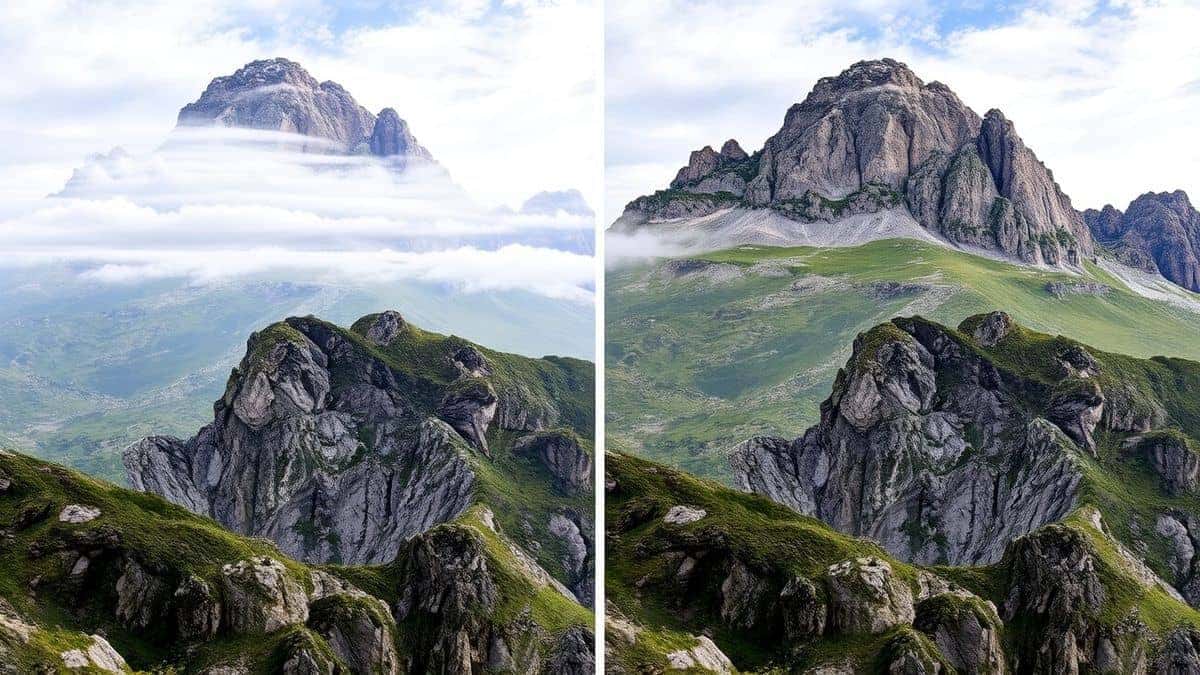
Smart compression preserves visual quality remarkably well. You'll typically see file size drop 50-80% with no noticeable difference to the naked eye. If you zoom to 400%, you might spot minor differences, but for web use, email, and forms, quality remains excellent.
What's the best size for email attachments?
For reliable delivery through most email systems, aim for 1-2MB per image. This keeps total attachments under common 10-25MB limits and ensures recipients can download quickly.
Can I compress other image types besides JPEG?
Absolutely. The platform supports PNG, WebP, and other common formats. The same principles apply—upload, compress, download.
How secure is online compression?
Reputable tools like FileCompress automatically delete your files from their servers after processing (typically within an hour). They don't store, share, or use your images. Always check privacy policies, but this is standard practice for trustworthy services.
Will this work on my phone or tablet?
Yes, the tool is fully mobile-responsive. I regularly use it on my iPhone and iPad when I'm away from my computer and need to send images quickly.
Conclusion
Dealing with oversized JPEG files doesn't have to be a headache. Whether you're battling upload limits on important forms, trying to email photos to family, or optimizing your website for better SEO, knowing how to reduce JPEG file size to 2MB easily is a skill that pays dividends.
The process is simple:
- Choose a reliable tool
- Upload your image
- Let compression work its magic
- Download your optimized file
From my years of experience in file optimization and website performance, I can tell you this: the best tool is the one you'll actually use. That's why I consistently recommend Compress Jpeg To 2mb. It removes every barrier—no cost, no installation, no learning curve—and delivers professional results every time.
Next time you see that dreaded "file too large" message, don't panic. Don't spend hours researching complicated software. Just head to FileCompress, upload your JPEG, and get back to what matters.
Ready to compress your first image? Try it now—it's free, it's fast, and it works.
Have questions about compression? Need help with a specific file type? Drop me a comment below—I read every response and love helping readers solve their file size challenges.


