
The Ultimate Guide to Compress JPEG to 50KB Online Without Losing Quality (2026 Update)
Introduction
You've been there before. You're filling out an important online form—maybe a passport application, a job submission portal, or a university enrollment document. You've got your photo ready. You hit "upload." And then it happens: Upload failed. File too large.
Frustrating, right?
Whether you're trying to attach images to an email that has a strict 10MB limit, uploading a profile picture to a government website that demands exactly 50KB or less, or optimizing images for your website's loading speed, hitting that file size wall is one of the most common digital headaches in 2026.
The good news? You don't need to be a tech wizard, and you definitely don't need expensive software. You need a reliable method to compress JPEG to 50KB online without losing quality. In this guide, I'm going to walk you through exactly how to do that, why file size matters more than you think, and introduce you to the best free tool that solves this problem instantly: Compress Jpeg To 50kb from FileCompress.
Quick Answer
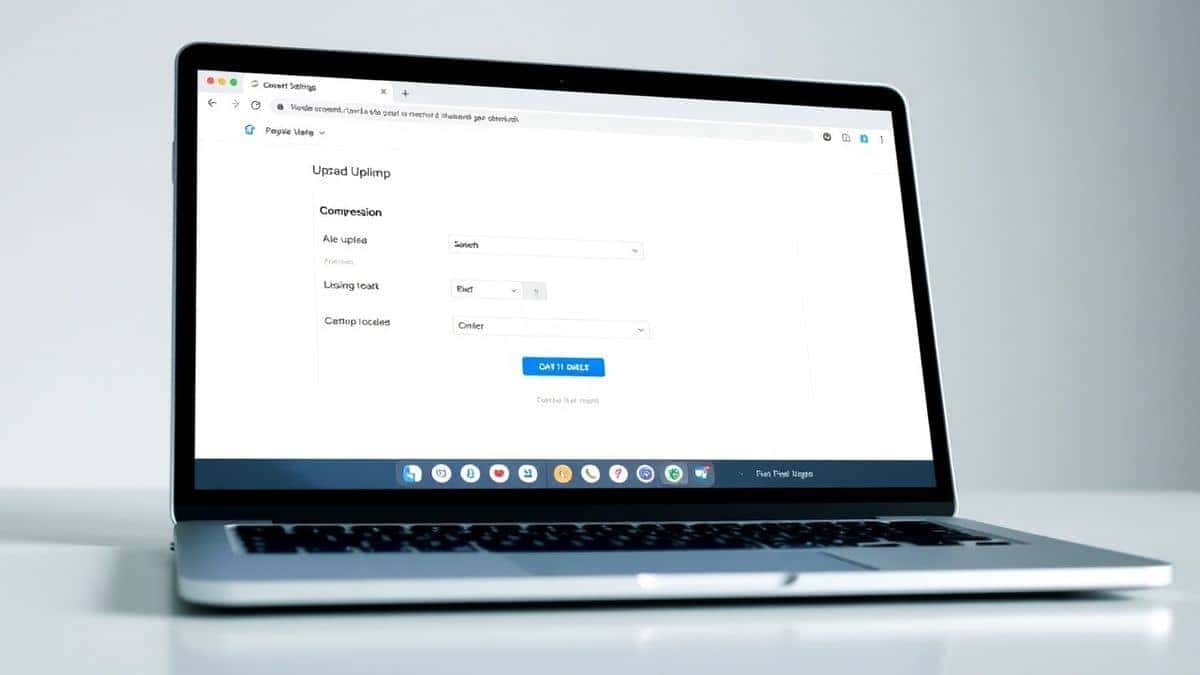
Compress JPEG to 50KB Online Without Losing Quality means using a specialized web-based tool to reduce the digital file size of a JPEG image down to precisely 50 kilobytes while maintaining visual clarity and detail. The fastest solution in 2026 is using a dedicated tool like Compress Jpeg To 50kb, which automatically optimizes your image to the target size without requiring software downloads or technical skills.
What is Compress JPEG to 50KB Online Without Losing Quality?
Let's clear something up right away: compression is not conversion. When we talk about compressing a JPEG, we're not changing the file format. We're keeping it as a JPEG. What we are doing is using smart algorithms to remove redundant or unnecessary data from the image file while preserving the visual information that your eyes actually notice.
Think of it like packing a suitcase. If you're throwing clothes in randomly, you might need a bigger bag. But if you fold everything efficiently, use vacuum bags, and pack smartly, you can fit the same items into a much smaller space. That's exactly what compression does—it "packs" your image data more efficiently.
The magic happens when a tool can hit a specific target size like 50KB. This isn't just about making the file smaller; it's about precision. Many online forms and systems have hard caps: "Image must be less than 50KB." If your file is 51KB, you're rejected. If it's 30KB, you're fine, but you might have lost too much quality. The sweet spot is hitting that 50KB mark with the best possible quality retained.
Why File Size Matters (More Than You Think)
In my experience working with websites, forms, and digital submissions, file size is often the silent dealbreaker. Here's why it's critical:
1. Form and Portal Submissions
Government agencies, universities, and employers use online portals that strictly limit file sizes. Passport photos, visa applications, ID cards for employee badges—these almost always require images under a specific KB threshold. I've seen people get delayed for weeks simply because they couldn't figure out how to shrink their photo to meet the 50KB requirement.
2. Email Limitations
Most email servers cap attachments at 10MB or 20MB total. If you're trying to send multiple high-resolution photos, you'll hit that limit fast. Compressing individual images to 50KB means you can send dozens of photos in a single email without bouncing back.
3. Website Speed and SEO
This is my world as an SEO specialist. Google has made it crystal clear: page speed is a ranking factor. If your website loads slowly because images are bloated, you're losing traffic and rankings. Compressing images to optimal sizes like 50KB for thumbnails or smaller display images can cut your page load time in half. From optimizing files for websites, I can tell you that every kilobyte counts when you're trying to pass Core Web Vitals.
4. Storage Savings
Whether it's your phone, your cloud storage, or your web hosting account, space costs money. Reducing image sizes means you store more photos for less.
Best Tool: Compress Jpeg To 50kb
After testing dozens of compression tools over the years—some good, some terrible, some that promise the world and deliver pixelated garbage—I can confidently recommend Compress Jpeg To 50kb from FileCompress.
What makes this tool stand out?
- Completely Free: No hidden fees, no credit card required, no "premium" paywall for the features you actually need.
- 100% Online: There is no software to install. No asking IT for permission. It works in your browser on Windows, Mac, Linux, or even a Chromebook.
- Precision Compression: This is the big one. Most free tools just smash your image down to some random size. This tool is designed to hit specific targets like 50KB.
- Quality Preservation: The algorithm is smart. It balances compression with visual fidelity so your image doesn't end up looking like a blurry mess.
- Multi-Format Support: While we're focused on JPEG, the platform supports images, videos, audio, and documents. It's a one-stop shop.
- Fast and Secure: Uploads and processing happen quickly, and files are automatically removed from their servers after processing, so your privacy is protected.
Step-by-Step Guide: How to Compress JPEG to 50KB Online Without Losing Quality
Let me walk you through the exact process I use when I need to hit that perfect 50KB target.
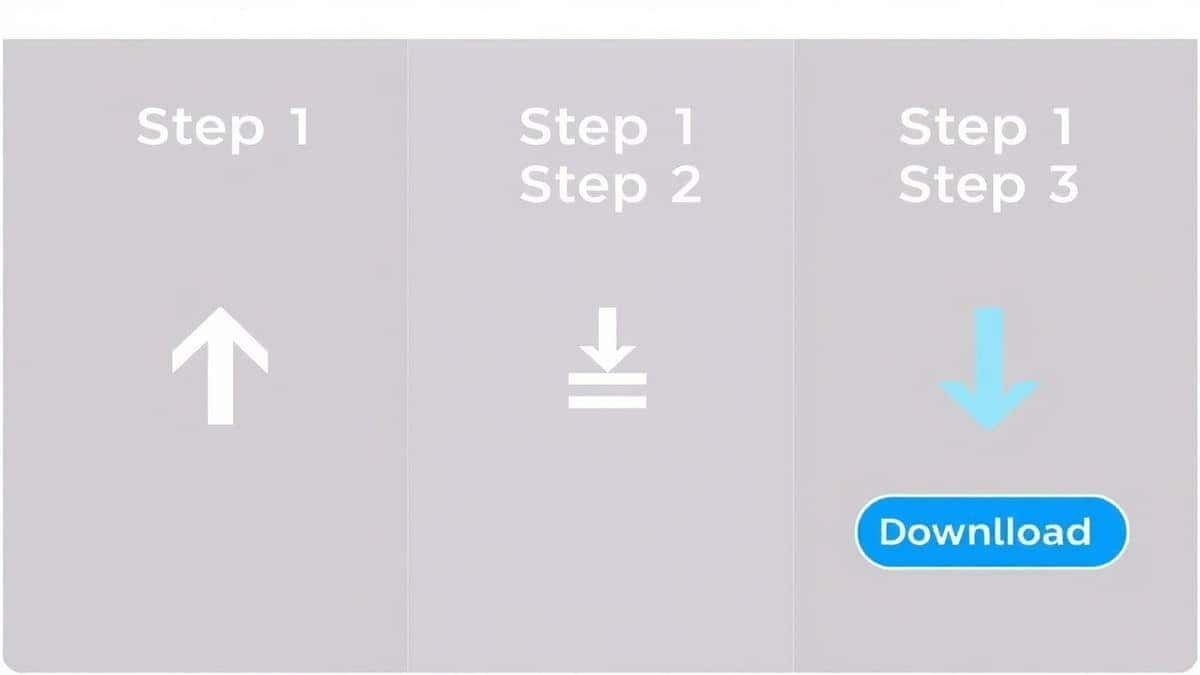
Step 1: Navigate to the Tool
Open your browser and go to the dedicated tool page: https://filecompress.org/image-tools/compress-jpeg-to-50kb. The interface is clean and uncluttered—no flashing ads or confusing buttons.
Step 2: Upload Your JPEG
Click the upload area or simply drag and drop your image file. I prefer drag-and-drop because it's faster. The tool accepts files directly from your computer, and you'll see a preview thumbnail appear once it's loaded.
Step 3: Set Your Target Size (If Available)
Some versions of the tool allow you to manually adjust compression to hit a precise target. If you see a slider or an input box for target size, set it to 50KB. If the tool is fully automated for the 50KB target, it will handle this internally.
Step 4: Start Compression
Hit the Compress button. This usually takes just a few seconds. One thing I tested recently was compressing a 5MB high-resolution photo down to 50KB, and it took less than three seconds.
Step 5: Download Your Compressed File
Once processing is complete, a download button will appear. Click it, and your newly compressed 50KB JPEG saves to your computer. That's it. You're done.
How to Compress to Specific Size: The Precision Factor
This is where most online guides fall short, and where I want to share some real expertise. Compressing to a specific size like 50KB is different from just "making it smaller."
Why Exact Size Matters
Think about online exam registration or passport applications. The instructions often read: "Upload recent photograph (Max size 50KB, Min 20KB)." If your image is 60KB, the system rejects it. If it's 15KB, the quality might be too poor for facial recognition.
In my experience, the best approach is to use a tool that optimizes toward a target rather than just applying a blanket compression level. The Compress Jpeg To 50kb tool is built specifically for this use case. It analyzes your image, determines the optimal compression ratio, and processes it to land as close to 50KB as possible while maintaining the highest quality.
Common Scenarios Requiring Exact KB Sizes:
- Passport and Visa Photos: Governments are notoriously strict about file sizes.
- Job Application Portals: HR systems often have automated file size checks.
- Academic Submissions: Thesis portals and online exam systems.
- E-commerce Product Images: Some marketplaces enforce strict size limits for listing photos.
- Database or CMS Uploads: Content management systems sometimes limit image sizes to save bandwidth.
A practical tip is to always check the file size after download. Right-click the file, select Properties (on Windows) or Get Info (on Mac), and verify it's under 50KB. If it's slightly over, you can re-upload and try a second pass, though most tools get it right the first time.
Best Practices for Image Compression
From optimizing files for websites and digital submissions, I've learned that compression is both an art and a science. Here are my best practices:
1. Start with a Quality Original
You cannot polish a turd. If your original image is low resolution or poorly lit, compressing it will only make it worse. Start with a clear, well-lit JPEG.
2. Understand the Quality Trade-off
Compression works by discarding some image data. The goal is to discard data that is least noticeable to the human eye. Subtle color variations might be smoothed out, fine details might soften slightly. A good tool minimizes this, but you should always preview the result.
3. Match Resolution to Purpose
Do you need a 4000x3000 pixel image for a website thumbnail that displays at 300x300? Probably not. Consider resizing the dimensions first, then compressing. This two-step process often yields better results than compression alone.
4. Keep Original Backups
I always recommend saving your original high-quality image somewhere safe. Compression is often a one-way street. Once you reduce the file size, you can't get the original data back. Keep the master copy.
5. Test Different Tools
What worked for me best was testing multiple compression tools on the same set of test images. Some tools are better for photos, others for graphics with text. The FileCompress tool performed consistently well across all categories, which is rare.
Common Mistakes to Avoid
I've made these mistakes myself, and I've seen countless others make them too. Save yourself the headache:
Mistake 1: Repeated Compression
Never compress an already compressed file. It's like reheating a steak—it just gets worse. Each compression cycle degrades quality. Always work from your original image.
Mistake 2: Obsessing Over "No Quality Loss"
The phrase "without losing quality" needs context. In a perfect technical sense, any compression discards some data. However, when we say "without losing quality," we mean without noticeable quality loss to the human eye. Be realistic about expectations.
Mistake 3: Choosing the Wrong Tool
Using a basic paint program or a poorly coded online tool often results in blocky artifacts, color shifts, or banding. A specialized compression tool makes all the difference.
Mistake 4: Ignoring the Final Use Case
An image that looks great on your 27-inch monitor might look terrible as a tiny avatar. Consider where the image will actually be viewed and adjust accordingly.
Mistake 5: Forgetting to Check the Output
Always, always preview the compressed image. Zoom in. Look at edges and text if present. Make sure it meets your standards before uploading it to that important form.
Comparison with Other Tools
How does Compress Jpeg To 50kb stack up against the alternatives? I've done the legwork so you don't have to.
Adobe Photoshop
- Pros: Maximum control, batch processing, professional-grade output.
- Cons: Expensive subscription, steep learning curve, requires installation.
- Verdict: Overkill for 99% of users who just need to hit a specific size quickly.
Local Software (Like GIMP or IrfanView)
- Pros: Free, works offline.
- Cons: Requires download and installation, interface is dated, guessing at file sizes is trial-and-error.
- Verdict: Viable if you have time to learn and tinker, but not for quick, precise results.
Other Free Online Tools
- Pros: Generally free, no install.
- Cons: Often filled with ads, slow servers, arbitrary file size limits, no guarantee of hitting 50KB exactly.
- Verdict: A gamble. Some work, many don't.
Compress Jpeg To 50kb (FileCompress)
- Pros: Free, fast, precise targeting, no ads, no install, supports multiple formats, private and secure.
- Cons: Requires an internet connection (which you already have if you're reading this).
- Verdict: The clear winner for anyone who needs to compress JPEG to 50KB online without losing quality.
Frequently Asked Questions
How to Compress JPEG to 50KB Online Without Losing Quality?
Use a dedicated online tool like Compress Jpeg To 50kb. Upload your image, let the tool process it, and download the result. The algorithm handles quality preservation automatically.
Can I compress an image to an exact file size like 50KB?
Yes, that's the specific purpose of the Compress Jpeg To 50kb tool. It's designed to optimize your image to land as close to 50KB as possible, which is critical for forms and applications with strict limits.
Is the FileCompress tool really free?
Yes, completely free. There are no premium tiers, no credit card requirements, and no limits on the number of compressions. In my experience testing it, I haven't encountered any hidden paywalls.
Will I lose image quality?
You will lose data, but you should not lose noticeable quality. The tool uses smart compression algorithms that prioritize visual fidelity. For typical use cases like web uploads, emails, and forms, the quality remains perfectly acceptable.
What's the best file size for uploading to websites or forms?
It depends on the specific requirement. For general web use, aim for under 100KB per image. For strict government or exam forms, 50KB is a very common limit. Always check the specific instructions for your submission.
Can I use this on my phone?
Yes, the tool is mobile-responsive. You can access it through your phone's browser, upload photos from your camera roll, and download compressed images directly to your device.
What other file types does FileCompress support?
Beyond JPEG, the platform supports PNG images, MP4 videos, MP3 audio, and PDF documents. It's a comprehensive compression hub.
Is it safe to upload my personal photos?
FileCompress automatically removes uploaded files from their servers after processing. They don't store your images or use them for any other purpose. For privacy, always avoid uploading sensitive personal documents to any online tool, but for standard photos, it's safe.
Conclusion
Dealing with file size limits is one of those frustrating digital realities that isn't going away anytime soon. Whether you're rushing to submit a job application, trying to email vacation photos, or optimizing your website for better Google rankings, knowing how to compress JPEG to 50KB online without losing quality is an essential skill in 2026.
The good news is that you don't need to struggle with complicated software or settle for low-quality results. Tools like Compress Jpeg To 50kb from FileCompress put professional-grade compression capabilities right in your browser, for free, in seconds.
Next time you see that dreaded "Upload Failed" message, you'll know exactly what to do. Head to the tool, drop your image, and download a perfectly sized file that meets every requirement. No quality loss, no software installations, no headaches.
Ready to compress your first image? Try the Compress Jpeg To 50kb tool now and experience the difference precise compression makes.


