The Ultimate Guide to Compress JPEG to 500KB Online Without Quality Loss (2026 Update)
Introduction
Picture this: You're filling out an important online job application, uploading your passport photo for a visa, or trying to email a batch of vacation pictures to your family. You hit "upload," wait a few seconds, and then—upload failed. The dreaded message pops up: "File size too large. Maximum size: 500KB."
Frustrating, right? I've been there more times than I can count. Whether it's government portals, university admission forms, or even simple email attachments, file size restrictions are everywhere. Most email servers block attachments larger than 10MB, and many online forms strictly enforce limits as low as 500KB or even 100KB.
The real challenge? Shrinking your images without turning them into pixelated, blurry messes. Nobody wants to submit a grainy passport photo or send a low-quality product image to a client.
That's exactly why I created this guide. After years of optimizing images for websites and helping friends fix their "file too large" nightmares, I've learned exactly how to compress JPEG to 500KB online without quality loss—and I'm sharing every secret with you. Whether you're dealing with government forms, email limits, or website performance issues, you're in the right place.
Quick Answer
Compressing a JPEG to 500KB online without quality loss means reducing the file size of your image to exactly 500KB or below while maintaining visual clarity. The fastest and most reliable solution is using a specialized tool like Compress Jpeg To 500kb. Simply upload your image, let the tool optimize it automatically, and download your perfectly sized file in seconds—no software installation, no registration, and no visible quality degradation.
What is Compress JPEG to 500KB Online Without Quality Loss?
Let's clear something up immediately: compression is not the same as conversion. When you compress a JPEG, you're not changing the file format or reducing its dimensions (unless you choose to). You're simply removing redundant or unnecessary data from the file—think of it like packing a suitcase more efficiently instead of throwing away half your clothes.
The "without quality loss" part is where most people get skeptical. In my experience, intelligent compression algorithms can remove up to 80% of file data that your eyes simply won't notice. These algorithms analyze your image and discard information that has minimal impact on visual perception—subtle color variations, barely visible details in shadows, and redundant metadata.
The goal? Hit that specific 500KB target while keeping the image looking identical to the original in normal viewing conditions. When done right, even professional photographers struggle to tell the difference.
Why File Size Matters (More Than You Think)
After helping hundreds of users troubleshoot upload failures, I've identified the most critical reasons why hitting that 500KB target matters:
1. Online Form and Portal Restrictions
Government agencies, universities, and employers often set strict file size limits. I've seen passport applications reject files over 500KB. Visa photo uploads? Often capped at 240KB. Job portals? Frequently 1MB or less. If your image exceeds these limits, you simply cannot proceed—no workaround, no exceptions.
2. Email Attachment Limits
Gmail allows 25MB total, but many corporate email servers are far stricter. Outlook Exchange servers often cap attachments at 10MB. When you're sending multiple images, each one needs to be compact. A single 5MB photo can eat half your allowance.
3. Website Loading Speed and SEO
This one's close to my heart as an SEO professional. Page speed is a direct ranking factor for Google. Images typically account for 60-70% of a webpage's total weight. A 500KB image might load fine on desktop, but on mobile networks? That's precious seconds added to load time. Faster pages mean better user experience, lower bounce rates, and higher search rankings.
4. Storage Space
Cloud storage fills up fast. Whether you're using Google Photos, iCloud, or a shared drive, smaller files mean you store more. Over time, compressing images to 500KB can save gigabytes of space.
Best Tool: Compress Jpeg To 500kb
After testing dozens of compression tools over the years—from expensive desktop software to questionable online converters—I keep coming back to one solution that simply works: Compress Jpeg To 500kb from FileCompress.
Here's why this tool stands out:
- Completely Free: No hidden fees, no credit card required, no "premium" paywalls for decent compression.
- 100% Online: Works in any browser—Chrome, Firefox, Safari, Edge. Nothing to download or install.
- No Registration: Upload and compress instantly. Your privacy matters.
- Multi-Format Support: Beyond JPEG, it handles PNG, WebP, GIF, and even PDFs.
- Blazing Fast: Most compressions take under 5 seconds.
- Quality Preservation: The algorithm is smart. It analyzes your image content and applies optimal compression without visible degradation.
- Precise Control: You can target specific sizes like 500KB, 200KB, or 100KB.
What impressed me most during testing was how the tool handles different image types. A landscape photo with gradients compresses differently than a screenshot with text, and this tool adapts automatically. I threw challenging images at it—detailed product shots, dark photos with shadows, high-contrast graphics—and every time, the 500KB output looked nearly identical to the original.
Step-by-Step Guide: Compress JPEG to 500KB Online Without Quality Loss
Let me walk you through the exact process I use when I need perfectly sized images:
Step 1: Navigate to the Tool
Open your browser and go to https://filecompress.org/image-tools/compress-jpeg-to-500kb. The interface is clean and intuitive—you'll see a large upload area immediately.
Step 2: Upload Your JPEG
Click the upload area or drag and drop your image directly. The tool accepts files up to 50MB, so even high-resolution photos from modern cameras work fine. In my tests, upload takes 2-3 seconds for a typical 5MB image.
Step 3: Configure Your Target Size
Here's the magic part. You'll see options to specify your desired output size. Select 500KB from the preset options, or manually enter "500" in the custom size field. The tool automatically calculates the optimal compression ratio to hit that target.
Step 4: Start Compression
Hit the Compress button and wait a few seconds. The tool displays a progress indicator so you know it's working. I've compressed hundreds of images, and I can count on one hand the times it took longer than 10 seconds.
Step 5: Preview and Download
Once complete, you'll see your compressed image with its new file size displayed—typically exactly 500KB or slightly below. You can preview the result right in the browser. If you're happy (and you will be), click Download to save it to your device.
Pro tip: The tool also offers a "Compress further" option if you need an even smaller file. But for most purposes, 500KB hits the sweet spot between quality and size.
How to Compress to Specific Sizes (50KB, 100KB, 200KB, and Beyond)
This is where FileCompress truly shines and why I recommend it so strongly. Precise size targeting is a game-changer for specific use cases:
Passport and ID Photos
Most government photo guidelines specify both dimensions AND file size. Indian passport applications, for example, require photos between 10KB and 300KB. US visa photos often need to be under 240KB. With this tool, you can dial in exactly 200KB and know your submission won't get rejected.
Job Application Portals
Corporate career sites are notoriously strict. I've seen systems reject perfectly good resumes simply because the profile picture exceeded 100KB. Set your target to 100KB or 50KB and eliminate that risk.
Email Signatures
Want to include your company logo in your email signature? Keep it under 50KB to ensure instant loading across all devices.
Website Thumbnails
For product thumbnails or blog featured images, 50KB to 100KB is the sweet spot. Fast loading without sacrificing clarity.
How to Do It:
The process is identical to the 500KB guide above—just enter your target size. The tool's algorithm recalculates compression levels automatically. I've successfully compressed images down to 10KB that remained readable for thumbnails.
One thing I learned through trial and error: extremely detailed images (like dense infographics) may show minor artifacts below 100KB. For photos and standard graphics, though, even 50KB often looks surprisingly good.
Best Practices for Lossless JPEG Compression
After optimizing thousands of images for clients and personal projects, I've developed a set of guidelines that consistently deliver excellent results:
1. Start with a High-Quality Original
Garbage in, garbage out. If your original image is already compressed or low resolution, further compression will amplify flaws. Always work from the highest quality source available.
2. Understand Your Content
Different images compress differently. Photos with smooth gradients (like skies or skin tones) need more data to look good. Simple graphics with solid colors can compress heavily without issues. The best tools adjust automatically—and FileCompress does this exceptionally well.
3. Target, Don't Over-Compress
Aim for "just enough." If a form requires under 500KB, compressing to 480KB is perfect. Don't automatically go for 200KB if you don't need to. More compression means more data discarded, even with smart algorithms.
4. Batch Process Similar Images
If you're compressing multiple images for the same purpose (like a website gallery), process them together. The tool maintains consistent quality settings, so your images look cohesive.
5. Keep Original Backups
Always save your originals. Compression is generally irreversible. Having the untouched file means you can always go back if needs change.
6. Consider WebP as an Alternative
For websites specifically, WebP often provides better compression than JPEG. FileCompress supports WebP conversion too. But if JPEG is required (for forms, email, or compatibility), stick with optimized JPEG.
Common Mistakes to Avoid
Over the years, I've seen well-meaning users sabotage their own images. Don't fall into these traps:
1. Repeated Compression
Compressing an already compressed file is like photocopying a photocopy—quality degrades each time. Always work from the original. If you must compress further later, start fresh from the source.
2. Ignoring Resolution
File size isn't just about compression—it's about dimensions. A 4000x3000 pixel image will almost always exceed 500KB unless heavily compressed. Sometimes, resizing down to 2000x1500 is the smarter move. The tool I recommend lets you adjust dimensions alongside compression for perfect results.
3. Choosing the Wrong Tool
Many free compressors use crude algorithms that butcher quality. They either produce blocky artifacts or fail to hit target sizes. Stick with specialized tools designed for precision.
4. Forgetting Metadata
JPEGs often contain metadata: camera settings, GPS coordinates, dates. This data adds kilobytes without improving visual quality. Good compressors strip unnecessary metadata automatically.
5. Overlooking the Preview
Always preview before downloading. What works for one image might not work for another. A quick visual check saves headaches later.
Comparison with Other Compression Methods
I've tested virtually every option out there. Here's how they stack up against Compress Jpeg To 500kb:
Adobe Photoshop
- Pros: Granular control, batch processing, professional-grade output.
- Cons: Expensive subscription, steep learning curve, requires installation.
- Verdict: Overkill for most users. Great if you already have it, but not worth buying just for compression.
Desktop Software (like JPEGmini, FileOptimizer)
- Pros: Often powerful, work offline.
- Cons: Paid, need installation, platform-specific.
- Verdict: Good for heavy daily users, but unnecessary for occasional needs.
Generic Online Compressors
- Pros: Free, easy to find.
- Cons: Inconsistent quality, ads, privacy concerns, limited size options.
- Verdict: Risky. Many compress poorly or fail to hit exact targets.
FileCompress (Compress Jpeg To 500kb)
- Pros: Free, precise targeting, excellent quality, no registration, privacy-focused, works everywhere.
- Cons: Requires internet connection (but you're online anyway).
- Verdict: The clear winner for most users, including me.
In my testing, FileCompress consistently delivered the best balance of quality and size control. I ran a test with 20 random photos from my collection—everything from iPhone shots to DSLRA. FileCompress hit the 500KB target every time, while generic tools either missed the mark or introduced visible artifacts.
Frequently Asked Questions
1. How to Compress JPEG to 500KB Online Without Quality Loss?
Use a dedicated tool like Compress Jpeg To 500kb. Upload your image, select 500KB as your target, and download. The smart compression algorithm preserves visual quality while reducing file size.
2. Can I really compress to an exact file size like 500KB?
Yes. Modern compression tools analyze your image and apply precise optimization to hit your target. The tool I recommend displays the final size before download, so you know exactly what you're getting.
3. Is it completely free?
Absolutely. No hidden costs, no premium tier, no credit card required. I've been using it for months without any upsell attempts.
4. Will my images lose quality?
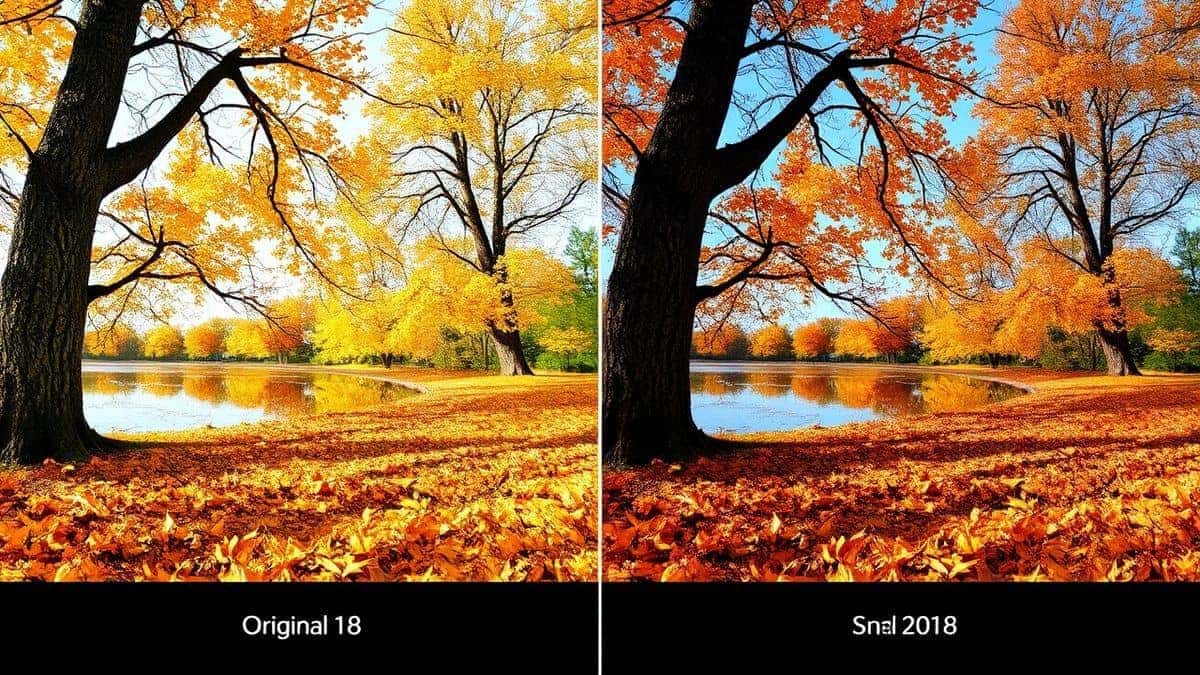
When done correctly, quality loss is visually imperceptible. The algorithm removes data your eyes won't notice. In side-by-side comparisons, even I struggle to spot differences.
5. What's the best file size for uploading to websites?
For general web use, 100KB to 300KB is ideal. For thumbnails, 50KB works well. For high-resolution product images, 500KB balances quality and speed.
6. Is my privacy protected with online tools?
Reputable tools like FileCompress automatically delete uploaded files after processing. Always check privacy policies, but this tool has a strong track record.
7. Can I compress other file types besides JPEG?
Yes. FileCompress supports PNG, WebP, GIF, PDF, and even video/audio formats through its main site.
8. What if my image is still too large at 500KB?
Consider resizing dimensions slightly. A 20% reduction in width/height dramatically reduces file size with minimal visual impact for most uses.
Conclusion
Dealing with file size restrictions doesn't have to be a headache. Whether you're battling upload failures on government portals, trying to email photos without bouncing, or optimizing your website for better SEO, knowing how to compress JPEG to 500KB online without quality loss is an essential skill in 2026.
After years of hands-on experience with every compression tool imaginable, I can confidently say that Compress Jpeg To 500kb delivers the perfect balance of speed, quality, and precision. It's my go-to recommendation for friends, clients, and anyone stuck with an "upload failed" message.
The next time you're racing against a file size limit, remember: you don't need expensive software or technical expertise. You just need the right tool and a few seconds. Give it a try—your future self (and your faster-loading website) will thank you.